Have you ever had a situation where you had to share your SARS eFiling account with someone, only to find out that you no longer need to grant them access? Maybe it’s a former colleague, an ex-business partner, or someone else entirely. Whatever the reason, removing their access to your account is important to protect your tax information.
But how do you do it? You might be worried about accidentally deleting something important or need help knowing where to begin. Don’t worry; removing a user from SARS eFiling is a straightforward process that will take little of your time.
By following these steps, you can have unwanted users removed from your SARS eFiling account in no time. You’ll be able to keep your tax information secure and have more control over who can access your account. So, let’s get started and remove any unwanted access from your SARS eFiling account.
How Do I Remove A User From Sars Efiling?
Removing a user from your SARS eFiling account is crucial in protecting your sensitive tax information from unauthorized access. Luckily, the process is simple and can be done in just a few easy steps. Following this guide, you can remove unwanted access to your account and secure your tax information.
Before you start removing a user from your SARS eFiling account, there are a few essential rules to follow. Firstly, ensure that you have an Administrative user linked to your profile. Additionally, you can’t be the only user associated with your profile, and there must not be any pending tax-type transfer requests for the associated tax user. By adhering to these rules, you can ensure a seamless process of removing a user from your SARS eFiling account. With these rules in mind, let’s dive into the simple steps to remove a user from your SARS eFiling account.
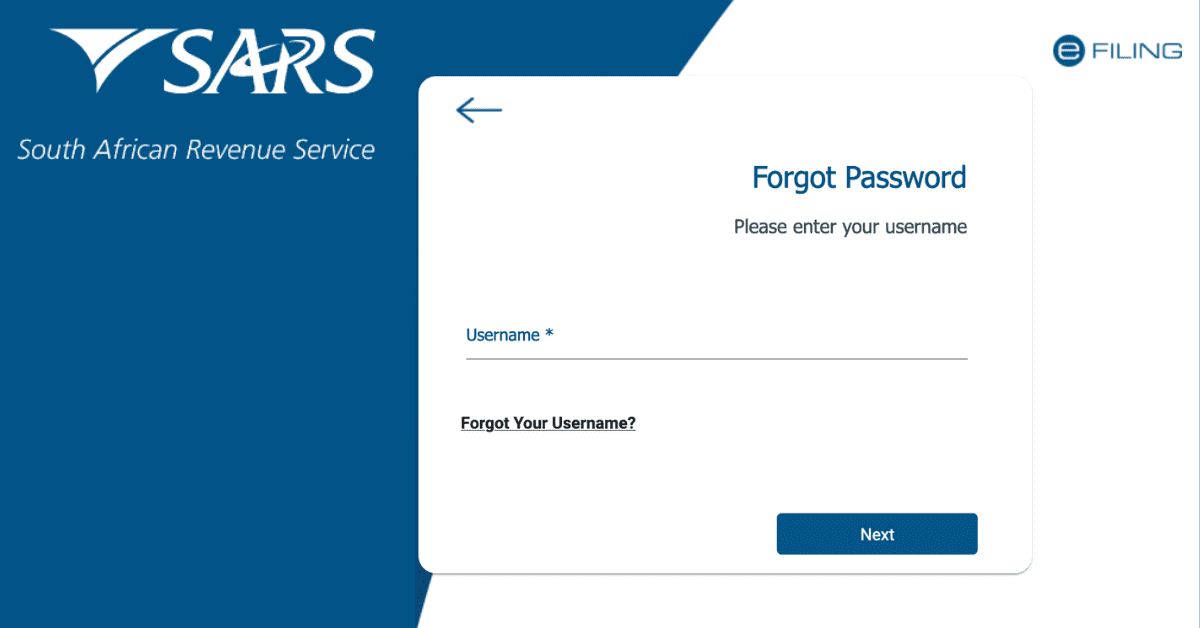
Step 1: Log in to your SARS eFiling account
Go to the SARS eFiling login page and enter your username and password.
Step 2: Select the tax user you want to delete
Once you’re logged in, navigate to your profile’s “User list” section. You’ll see a list of your account’s tax users. Find the tax user you want to delete and select it by clicking on their name.
Step 3: Select the “Delete User” option
From the User menu on the left-hand side of the page, select the “Delete User” option. If the user meets the rules for a Tax User delete request, the “Delete User” button will be available for selection.
Step 4: Confirm the deletion
After selecting the “Delete User” button, you’ll be prompted to confirm the deletion of the tax user. Double-check that you’ve selected the correct user, and click “Yes” to confirm.
Step 5: Confirmatory message
Once the tax user has been successfully deleted, a confirmatory message will be displayed, and the user will be removed from the “User List” of the logged-in profile.
How Do I Manage Users On Efiling?
The function to manage users on SARS eFiling allows you to carry out various actions, such as adding new users, granting access to tax types, setting authorization levels, and deleting users. By managing users, you can control who has access to your tax information and ensure that it remains private and secure. It’s important to keep your user list up to date and remove any users who no longer need access to your account. By doing so, you can minimize the risk of unauthorized access and prevent any potential security breaches.
- Log in to your eFiling account and access the required Organization or Tax Practitioner portfolio by selecting “My Profile” and “Portfolio Management” from the menu on the left, then clicking on “Go to Portfolio.”
- Once you’ve selected the desired portfolio, select “User” from the top menu and again from the left menu.
- Select “Invite User” and enter the required information for the user you wish to invite, including identification type, passport or ID number, tax reference number (if applicable), surname, and the default portfolio name you want the user to view upon accepting your invite.
- Click “Invite” and select the roles you want to assign to the user.
- Review the summary of selected roles and click “Continue.” The invite will be sent to the user, and you will be notified once they accept.
- To make changes to user details, select “Change Details” from the left menu and choose one of the following options: send a reminder, cancel the invitation, or update user rights.
- To remove a user from an existing portfolio, select “Delete User” from the left menu, insert a reason for deleting the user, and click “Delete User.” Confirm your request on the pop-up message by clicking “OK.”
How Do I Remove My Name From SARS?
You might think it is a good idea to try and remove your name from SARS, but unfortunately, that’s not an option. The truth is, if you’re earning any income as a resident of South Africa, you’re required by law to register as a taxpayer with SARS. This means that your name will always be linked to your taxpayer profile, and attempting to remove it could result in severe consequences.
However, there are other steps you can take to ensure that your taxpayer profile is accurate and up-to-date. By making sure that all your personal information and income details are correct and filing your tax returns on time, you can keep your taxpayer profile in good standing.
This will help you avoid unnecessary penalties or legal issues and ensure that your name is associated with a clean and compliant tax record. So, even though you can’t remove your name from SARS, you can take steps to keep your taxpayer profile positive and up-to-date.
How Do I Change My Representative On Efiling?
To change a representative on eFiling;
- Go to the “Activate Registered Representative” tab under SARS Registered Details.
- Select the applicable “Activate Registered Representative” or “Activate Tax Practitioner” button to continue.
- Once the representative declaration has been accepted, proceed with the activation process. Make sure that the correct “Capacity” is selected. After completing the activation, the status will be indicated in the “Activation Status on eFiling” field.
- To make changes to your personal details, go to the “Change Details” screen and update your information.
Note that eFiling registration details must align with your identity document or passport for verification purposes.